Smart Service Update 108 brings some amazing new features to the software, including the long-awaited ability to create new customers and new jobs in the field using the mobile app iFleet. As always, the best way to learn about all the new content is to check out our official update video:
Changes to Employee Permissions
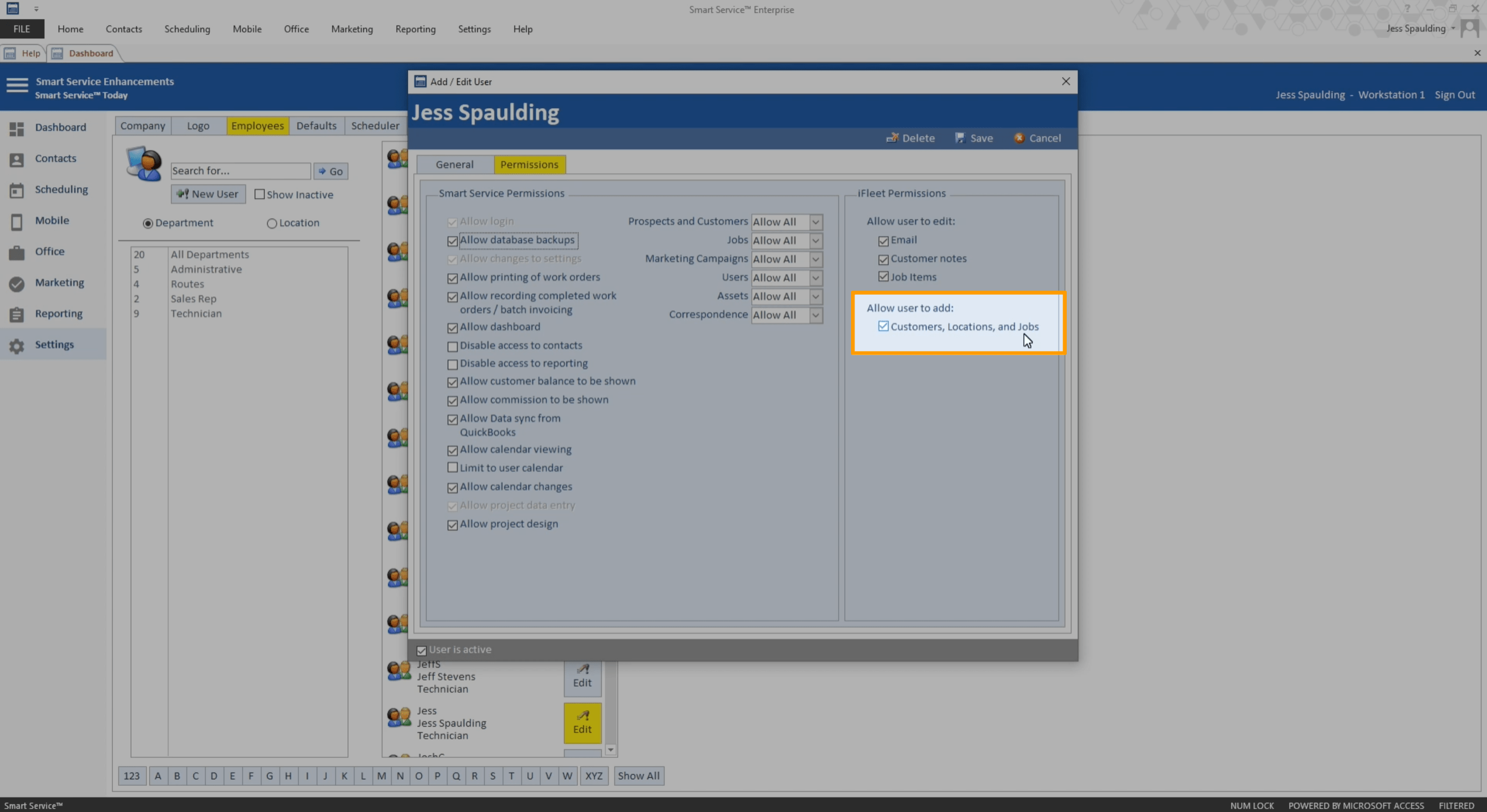
Before you can start adding jobs and customers in iFleet, you'll have to change a few settings in Smart Service. You'll find a new permission available in Settings > Employees > Edit > Permissions labeled "Allow user to add". Simply select the checkbox labeled "Customers, Locations, and Jobs" and that user will gain the ability to add those entities with iFleet. (They will have to sync their device before this change can take effect.)
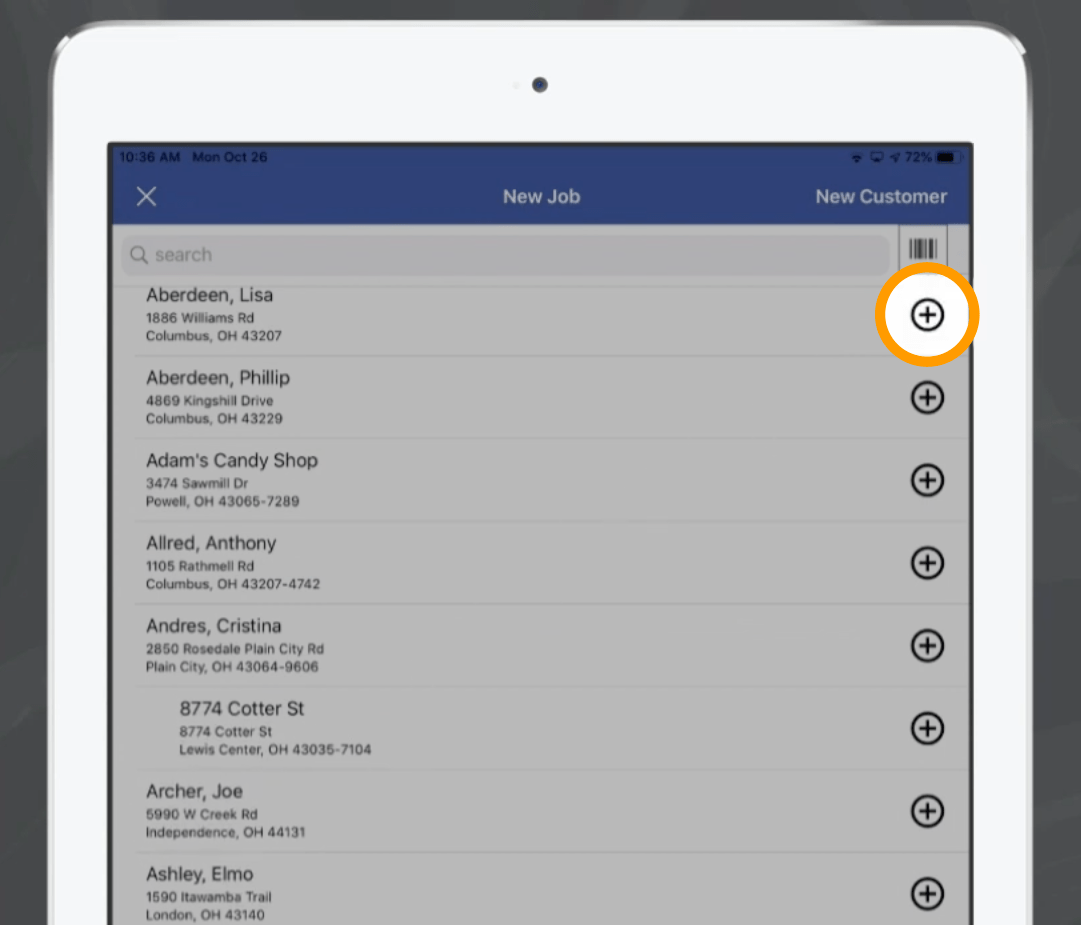
With this new permission selected, the iFleet user will find a new button labeled "New Job" in their side menu on iFleet. Clicking on this button will present the user with your customer list from Smart Service. Users can select a customer from this list or create a new Customer or Location by utilizing the "New Customer" button it the top right. Once the desired customer is located or added, iFleet users can then use the "+" button located to the right of the customer name to create a job for this customer. Within the newly created job, the user can add basic details such as Job Type, job start and end time, taxability, and contact information.
New Option in Office: Review and Post Section
Whenever an iFleet user sends a new customer, location, or job back to the office from the field, the office staff have a chance to review that new entry before sending it to QuickBooks. In order to review the newly added entries, just find the menu labeled "Jobs to be added to QuickBooks" and you will be presented a list of customers, locations, and jobs that have been added by your field users. This section gives your office users the opportunity to check the integrity of the information coming back from your iFleet users, thus ensuring they do not disrupt the data you have in QuickBooks.For more detail on using these new iFleet features, please check out our extensive Knowledgebase guide on the subject.
Display Job Exceptions on the Scheduler
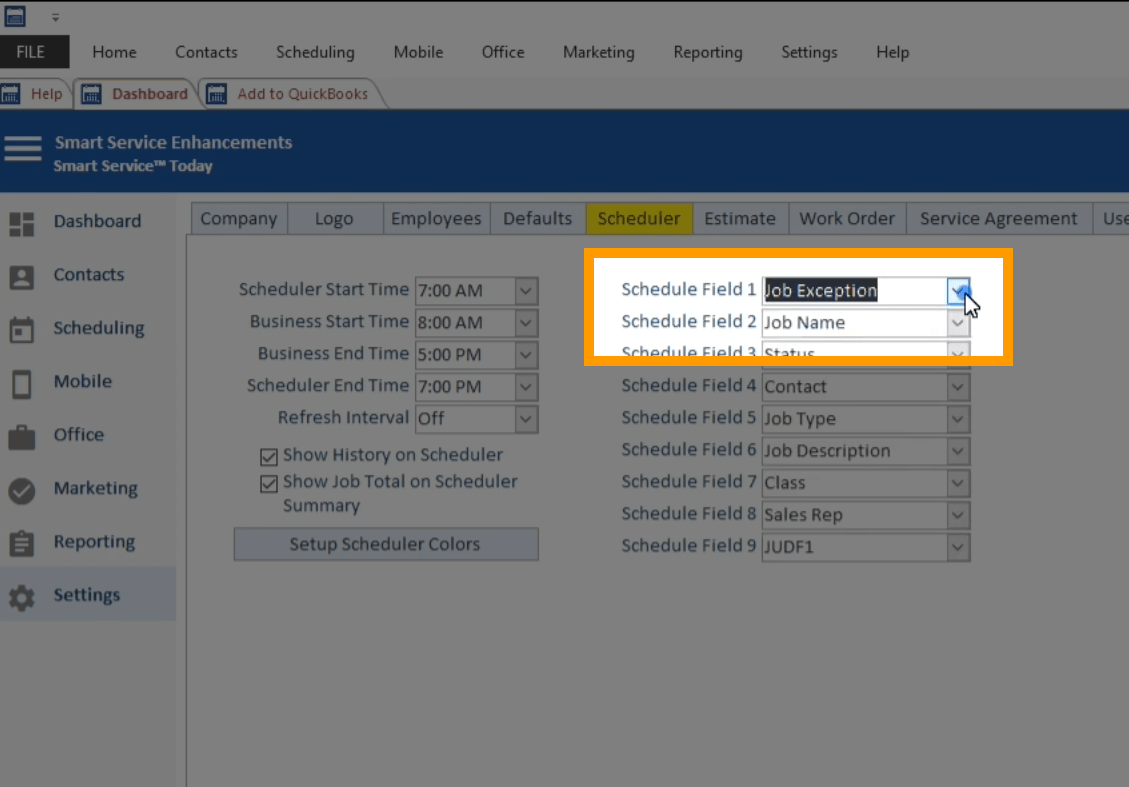
Job Exceptions can now be selected as a displayable field on the scheduler. Just head over to Settings > Scheduler and you will find the newly added "Job Exception" option within the Schedule field dropdowns. This will allow you to easily view this information when browsing through the scheduler.
Other Enhancements
- iFleet Job Alerts — You can now view alerts that office users have added to a job in iFleet.
- iFleet Notes Field — You will find a new field available in "Prospect Jobs" and "Customer Jobs" for storing private information (such as intel on an unruly dog) about individual customers.
- Routzy Queue Errors — Queue errors from the Routzy app can now be viewed in Smart Service.
- Percentage-Based Surcharges — QuickBooks Online users can add percentage-based surcharges.
Other Resources
Knowledgebase article on adding new jobs and customers in iFleet.Click to view the complete 10.108 release notes.Click to update Smart Service.