


The Smart Service workstation that booted fine yesterday morning is the Smart Service workstation that throws a "cannot connect to database" error this morning, and the dispatcher who was supposed to be releasing the day's schedule by 7 a.m. is instead staring at a connection error while the techs sit in their trucks waiting for the dispatch board to load. The cause is almost always the same: the SQL Server service that Smart Service depends on did not finish starting during the Windows boot sequence, and the database is sitting there ready to serve but unreachable until someone tells the service to start.
What follows is a working operator's view of how to manually start the Smart Service SQL service when it does not start on its own, why this happens in the first place, how to configure the service so it starts reliably going forward, and when to escalate to IT instead of troubleshooting on the dispatcher's workstation. The procedure works the same on a workstation running the local Smart Service database and on a dedicated office server hosting the multi-user Smart Service database for the team.
When the SQL Service Does Not Start
Windows starts dozens of services during the boot sequence, and the order matters. Older machines and machines with a lot of startup software (antivirus, backup agents, vendor utilities, browser-update services) sometimes fail to launch the SQL Server service on schedule because the boot sequence times out before SQL Server's turn comes up. The database itself is fine; the service that exposes the database to Smart Service just never got the green light. The fix is to start the service manually, and the procedure takes about ninety seconds.
Open the Services Manager
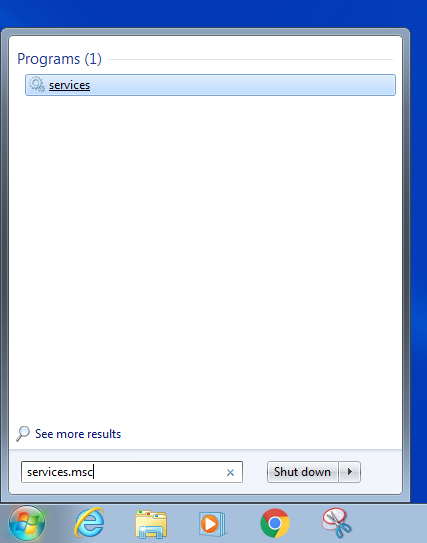
Open the Start menu and search for services.msc. The Services management console is the Windows utility that lists every background service the machine is running and lets you start, stop, or change the startup behavior of each one. Type "services.msc" in the Start menu search field and click the result that appears with the gear icon. The Microsoft documentation on Windows services describes how services are configured and what privileges they run under for additional context.
Find the SQL Server (SMARTSERVICE) Service
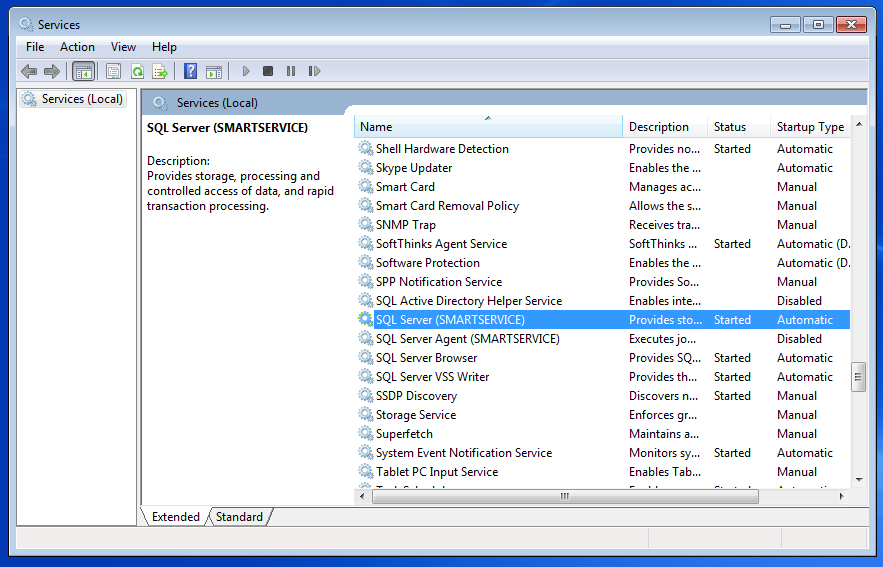
Scroll the Services list to find SQL Server (SMARTSERVICE). The Services window lists every service alphabetically. The Smart Service SQL service is named "SQL Server (SMARTSERVICE)" and the Status column shows whether it is currently running. A running service shows "Running" in the Status column; a service that did not start shows the column blank. The blank Status column is the symptom that explains the connect error on the workstation. The SQL Server Configuration Manager documentation covers the same service from the SQL-specific tooling side for IT admins who prefer that interface.
Start the Service
Right-click the SQL Server (SMARTSERVICE) entry and select Start. The service takes anywhere from five to thirty seconds to start depending on the size of the customer database. Once the Status column reads "Running," the database is reachable from Smart Service and the dispatcher's workstation will connect on the next launch attempt. Closing and reopening Smart Service after the service starts is the cleanest way to verify the fix took effect.
Don't Forget the iFleet Service
Operations running iFleet for mobile work orders depend on a second service called "iFleet Service" that handles the field-to-office sync. The same boot-time failure that can stop the SQL Server service from starting can stop the iFleet Service from starting, with the same observable symptom (the office workstation cannot see the techs' updates from the truck). If the SQL Server service needed a manual start, scroll down in the Services window and check the Status column on iFleet Service as well; right-click and Start it if the column is blank. The mobile workflow only works end-to-end when both services are running, and the cross-check is worth the extra ten seconds.
Why This Happens in the First Place
The startup sequence on a Windows workstation or office server is a list of services Windows tries to launch in order, with dependencies between them. SQL Server depends on several lower-level Windows services completing first, and the chain can break in three common ways. The first is the boot complexity problem: a machine running antivirus, cloud-backup software, vendor management agents, and Windows Update simultaneously can simply run out of startup time before SQL Server gets its turn. The second is a permissions change: a Windows update or domain policy change can revoke the Local System account permissions the service needs. The third is a stale lock file: a previous improper shutdown can leave a lock that the service refuses to start over. None of the three are catastrophic, and the manual start procedure works in all three cases as the immediate fix; the permanent fix differs by cause.
Setting the Service to Start Automatically
The manual start procedure works once. The long-term fix is to change the SQL Server (SMARTSERVICE) service's startup type from "Automatic" to "Automatic (Delayed Start)" in the same Services window. Right-click the service, select Properties, and change the Startup Type dropdown to Automatic (Delayed Start), then click OK. The Delayed Start setting tells Windows to launch the service two minutes after the rest of the boot sequence completes, giving the lower-level dependencies time to finish first. The same change applied to the iFleet Service prevents the parallel symptom on the mobile side. Operations that make this single change rarely need to manually start the service again.
When to Escalate to IT
The manual start procedure requires administrator privileges on the workstation. If the right-click menu shows the Start option grayed out, the logged-in Windows account does not have the rights to start a service, and the fix is to either log in as an administrator or to call the operation's IT contact. The same escalation path applies if the service starts but immediately stops, which usually indicates a database file problem, a permissions problem, or a corrupted SQL Server installation that needs a proper repair. The HVAC server emergency framework covers the broader response path when the issue turns out to be more than a stuck service.
The Broader Server Discipline
The Smart Service workstation that needs a manual SQL service start once a quarter is healthy. The workstation that needs a manual start every Monday morning is signaling a deeper problem, and the right move is to address the root cause rather than to make the dispatcher run the procedure forever. Pair the manual-start knowledge with the broader Smart Service infrastructure discipline: regular SQL Server backups, a documented restoration procedure, a coherent data storage strategy, and a decision on whether the operation runs the database on-premises or in the cloud. The same operational discipline that keeps the heat-wave demand spike under control keeps the SQL service running quietly in the background where it belongs, and pairs naturally with the broader field service industry trends the market has been moving on.
Smart Service for Field Service Operations
If you are running a field service business and want a software stack that handles scheduling, dispatch, customer history, mobile invoicing, recurring service contracts, and the SQL Server database discipline that keeps the office running without manual interventions, Smart Service integrates with QuickBooks Desktop and QuickBooks Online and iFleet keeps techs in the field synced with the office. Try a free demo to see how it fits!


