


Small and mid-sized field service businesses running SQL Server have a lot of critical data flowing into the database from office users and field technicians' mobile devices. Losing even a single day of data can mean lost invoices, broken schedules, and hours of manual reconstruction. The crash is going to happen eventually. The only question is whether the business has a working backup-and-recovery plan in place when it does. The five-step process below covers how to put SQL Server into the simple recovery model, configure SQL Server Agent for automated backups, run nightly full backups and hourly differential backups during business hours, and monitor everything so a failed backup gets caught before it matters.
This is part one of a two-part series. Part two covers restoring your SQL Server database after a crash.
Pick the Right Recovery Model
SQL Server has three recovery models per the Microsoft Learn documentation: simple, full, and bulk-logged. The choice determines what kinds of backup you can run and how much data you can lose to a crash.
Full recovery model. Captures every transaction in the transaction log. Allows point-in-time recovery to any minute before the crash. Requires regular transaction-log backups, which means advanced scripting and an experienced database administrator. The right pick for businesses that can afford a full-time DBA and cannot tolerate losing more than a few minutes of data.
Simple recovery model. Does not retain the transaction log between backups, so point-in-time recovery is not available. SQL Server reclaims log space automatically. The right pick for most small and mid-sized field service businesses that need a workable backup strategy without a DBA. Implemented properly, simple recovery can limit data loss to a single hour using hourly differential backups.
Bulk-logged recovery model. A hybrid mode for high-volume bulk-import workloads. Rarely the right pick for a standard service-business database.
The rest of this guide assumes simple recovery model. SQL Server Standard or Enterprise edition is required for SQL Server Agent (the automation engine that runs the backup jobs). SQL Server 2022 Standard edition licensing currently runs around $3,944 per core with a 4-core minimum, putting the entry-level license cost around $15,776 for small operations. That is real money, but the alternative is a database crash that costs more.
Set the Recovery Model
Per Microsoft's official procedure for changing the recovery model via SQL Server Management Studio (SSMS):
- Connect to the appropriate SQL Server Database Engine instance. In Object Explorer, click the server name to expand the server tree.
- Expand Databases and select the database (either a user database or, from System Databases, a system database).
- Right-click the database and click Properties to open the Database Properties dialog.
- In the Select a page pane, click Options.
- The current recovery model is displayed in the Recovery model list box. Change to Simple if it isn't already.
- While on the Options page, also set Auto Close to False to enhance performance.
- Click OK.
Configure SQL Server Agent
SQL Server Agent is the automation engine that runs scheduled backup jobs. It needs to be running and set to start automatically when the server boots.
Use SQL Server Configuration Manager to verify Agent status. The Configuration Manager is a Microsoft Management Console snap-in, which means it may not appear in the standard Windows start menu search. Find it at C:\Windows\SysWow64 as SQLServerManager16.msc (SQL Server 2022) or the equivalent version-numbered file for your installation. Pin it to Start or Taskbar for quick access.

Run Configuration Manager, expand SQL Server Services, find SQL Server Agent. If Start Mode is not Automatic, right-click Properties and set the Start Mode on the Service tab. If the Agent isn't running, right-click and select Start.
Set Up the Nightly Full Backup
Open SQL Server Management Studio, then View > Object Explorer. Connect to the server and expand SQL Server Agent > Jobs.
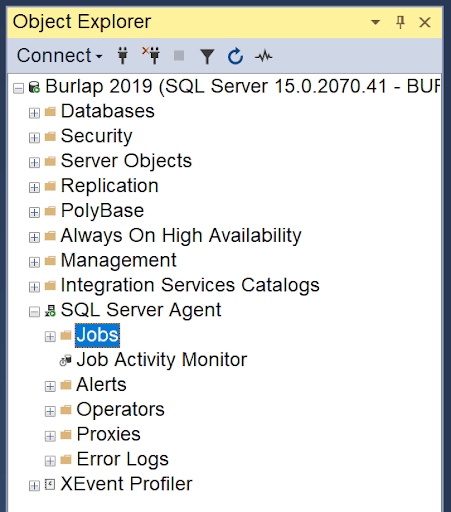
Right-click Jobs and select New Job. The Microsoft Learn reference for creating a SQL Server Agent job has the full procedure; the highlights below cover the backup-specific setup.
- In the New Job dialog, on the General page, set Name to something like "Full Backup".
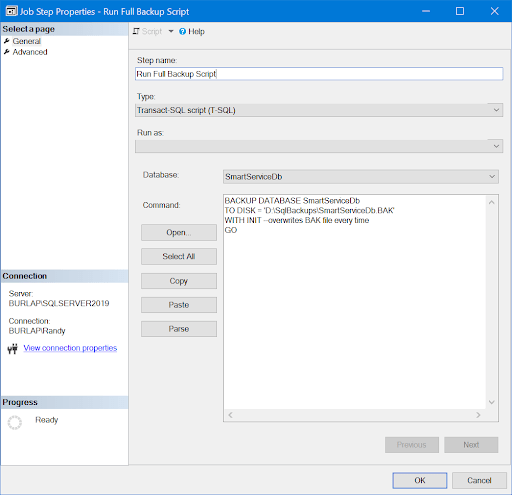
- Select the Steps page and click New. Set Step name to "Run Full Backup Script". Confirm Type is Transact-SQL script. Use the database dropdown to select the database to be backed up.
- Enter the following into the Command box, adjusting the database name and path to your environment:
BACKUP DATABASE SmartServiceDb
TO DISK = 'D:\SqlBackups\SmartServiceDb.BAK'
WITH INIT --overwrites BAK file every time
GO
- Click the Parse button to verify script syntax. Click OK to return to New Job Steps.
- On the Schedules page, click New. Enter Name "Nightly Full". Schedule type Recurring. Frequency Occurs Daily, Recurs every 1 day. Occurs once at 3:00 AM. Start date tomorrow, no end date.
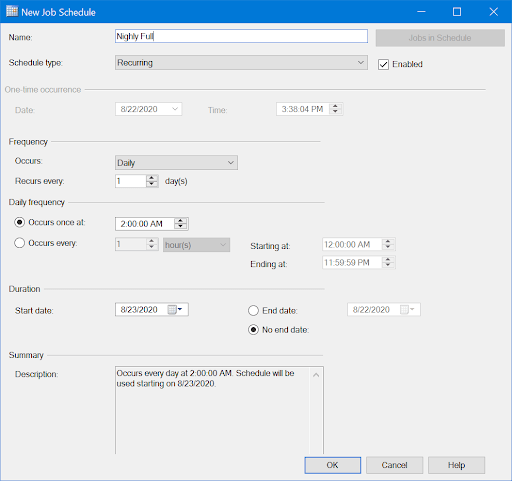
- Click OK to save the schedule and the job. From SSMS Object Explorer, right-click the Full Backup job to view history or start the job manually. The job assumes backup to a second local drive. Backing up to a network drive is preferable for offsite protection but requires additional setup with security and permissions; that is its own setup process.
Set Up Hourly Differentials
Differential backups capture only the changes since the last full backup, which means they run fast and recover the database to within an hour or less of any crash. The setup mirrors the full-backup job with three differences.
- Create a new Agent job named "Differential Backup".
- Add a step named "Run Differential Backup Script", database set to the one being backed up.
- Use the following script in the Command box (use the same BAK file name as the full backup):
BACKUP DATABASE SmartServiceDb
TO DISK = 'D:\SqlBackups\SmartServiceDb.BAK'
WITH DIFFERENTIAL --appends changes since last full backup
GO
- On the Schedules page, click New. Enter Name "Business Week Hourly". Schedule type Recurring. Frequency Occurs Weekly, Recurs every 1 week on the weekdays (Mon-Fri checked). Daily frequency Occurs every 1 hour, Starting at 9:00 AM, Ending at 6:00 PM. Start date tomorrow, no end date.
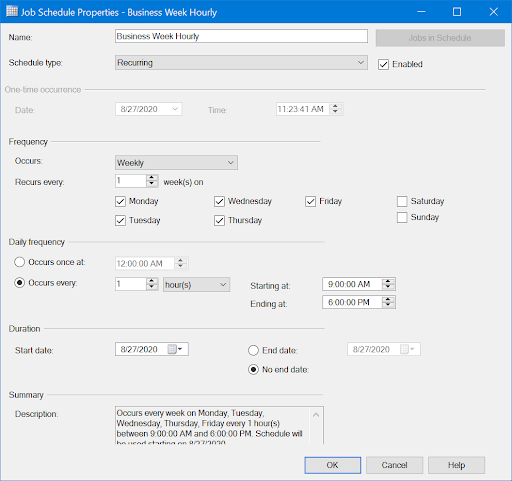
- Click OK to save the schedule and the job. Adjust differential frequency as the data-loss tolerance allows. Note that each differential backup increases the BAK file size by a minimum amount even if little data changed, so the file grows through the day. The next nightly full backup resets the file size.
Monitor the Jobs
Backup jobs fail. A backup drive fills up, a permission changes, a Windows update interrupts the schedule. The business that does not monitor the jobs finds out about the missing backups only when the database crashes and there is nothing to restore from. Check the jobs daily for the first week or two, then once or twice a week after that, in the SQL Server Agent Job Activity Monitor (visible in the Object Explorer screenshot above). Confirm the job's Last Run Outcome is "Succeeded" and the timestamps match the scheduled runs.
Putting the Plan in Place
The five steps above lock in a working backup-and-recovery plan for any field service business running SQL Server: simple recovery model, SQL Server Agent set to automatic, nightly full backup at 3 AM, hourly differential during business hours, and active monitoring of the job activity. With the plan in place, the inevitable crash becomes a brief inconvenience instead of a multi-day operational disaster. Part two of this series, Restoring Your SQL Server Database After a Crash, walks through the recovery side of the workflow so the next time something goes wrong the restore happens fast and cleanly. Companion reads on the surrounding back-office stack: a guide to choosing the right QuickBooks version that pairs with the SQL Server database, and a primer on small business accounting best practices that the database supports.
Smart Service for Field Service
If you are running a field service business and want a software stack that handles scheduling, dispatch, customer history, mobile invoicing, and recurring service contracts, Smart Service integrates with QuickBooks and keeps your techs in the field synced with the office — through the Cloud mobile app, or iFleet if you run Desktop. Try a free demo to see how it fits!

.png)
